For the complete documentation index, see llms.txt. This page is also available as Markdown.

Push Notification

Send a mobile push notification to selected workspace members through the Datacake app when a rule fires.

The Push Notification action sends a mobile push notification to selected members of your workspace through the Datacake app. It sits alongside the Email, SMS, and Webhook actions in the New Rule Engine and is a good fit when you want an alert to reach people instantly on their phone — without managing a list of email addresses or spending SMS credits.

Use it when:

  • You want on-call colleagues to be notified the moment a device goes offline or a threshold is crossed.

  • Your recipients already use the Datacake mobile app and prefer a push over email/SMS.

Prerequisites

Before you can set up a Push Notification action, make sure that:

  • Recipients have the Datacake mobile app installed and are signed in. A member can only receive a push once they have an active, signed-in app for the relevant branding. Members without the app can still be selected — they simply start receiving notifications once they install it and sign in.

  • You have the rules permission in the workspace. This is the same permission required to edit rules — no separate "members" permission is needed to pick recipients.

  • Your rule's branding supports mobile push. The action is only offered under the default Datacake branding, or under a white-label brand that has the Mobile Push integration enabled. See I don't see the Push Notification option below.

Setting up the action

This walkthrough sets up a rule that notifies your team when a device goes offline.

  1. Create or open a rule in the New Rule Engine and configure its trigger and conditions as usual. For an offline alert, use the Device Goes Offline trigger.

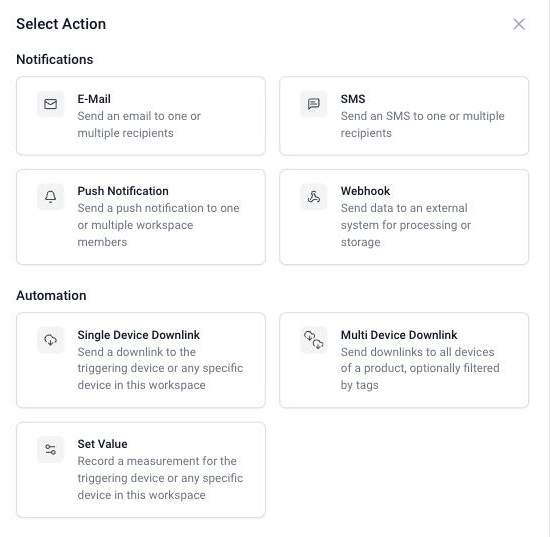
  2. Under Configure Actions, click Add Action, open the Notifications category, and choose the Push Notification card.

The Push Notification card in the Add Action picker, under the Notifications category.
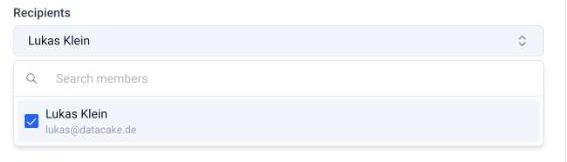
  1. Pick your recipients. Click the Recipients field and search the list of workspace members by name or email. Select everyone who should receive the push. At least one recipient is required to save the action.

The recipient picker lists workspace members; search by name or email and tick everyone who should receive the push.
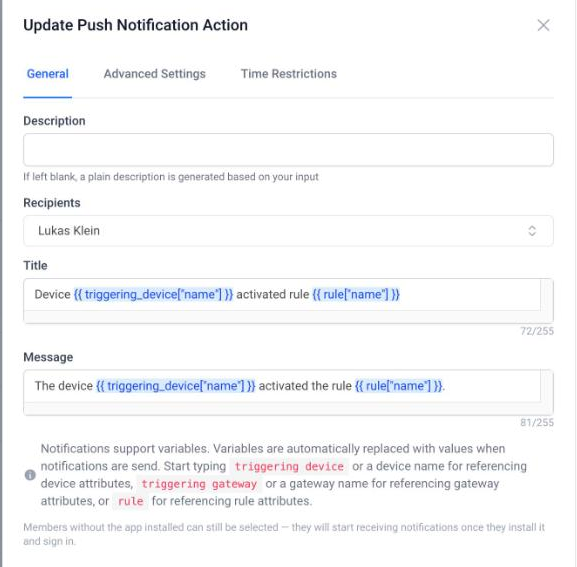
  1. Write the Title and Message. Both fields come pre-filled with a sensible default that already uses variables, for example a title of Device {{ triggering_device["name"] }} activated rule {{ rule["name"] }}. Edit them to suit your alert. You can insert variables such as the device name or rule name through the variable autocomplete — start typing triggering_device... to see the available fields.

Both Title and Message are required and are limited to 255 characters each. A live character counter is shown beneath each field and turns red when you go over the limit; saving is blocked until you shorten the text.

The Push Notification action editor, with Recipients, Title, and Message fields and the per-field character counter.
  1. Adjust the Advanced Settings and Time Restrictions if needed — these behave exactly like the other actions (see Advanced Settings and Time Restrictions).

  2. Save the action and the rule.

Using variables in the Title and Message

The Title and Message support the same Jinja-style placeholders as the Email and Webhook actions. For example:

For the full list of available variables and advanced templating, see:

Advanced Rule Engine E-Mail and Webhook Templates

Understanding the recipient list

Unlike Email and SMS, where you type free-text addresses or phone numbers, the Push Notification action lets you pick actual workspace members. Each member is shown with their name and email.

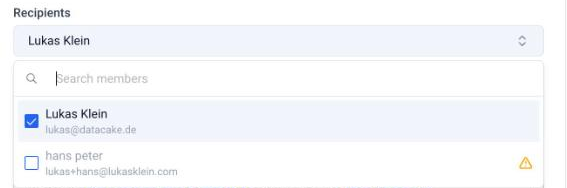
Members who cannot currently receive a push — because they have no Datacake app installed, or no registered device for the relevant brand — are shown greyed out with an amber warning icon. They are still selectable: hovering the icon explains that the member has not installed the app yet and won't receive a push until they do. Once they install the app and sign in, they start receiving the notifications automatically.

A reachable member (top) and an unreachable member shown greyed out with an amber warning icon (bottom). Unreachable members can still be selected.
This lets you set up the rule before your colleagues have installed the app. If every selected recipient is currently unreachable, a soft amber warning appears — but the rule still saves.

Recipients stay valid over time

If a selected member later leaves the workspace, the rule remains valid — that person is simply dropped from the recipients automatically. There is no error and the rule does not break.

Troubleshooting

I don't see the Push Notification option

The Push Notification card is only shown when the rule's branding supports mobile push:

  • Default Datacake branding → push is always available.

  • A white-label brand → push is only available if that brand has the Mobile Push integration enabled. If it isn't, the card is hidden.

This is the most common reason the option is missing. If your rule uses a white-label brand without Mobile Push, either switch the rule's branding to one that supports push, or enable the Mobile Push integration for that brand. If a push action already exists under an unsupported brand, the editor shows a warning that the action will not fire.

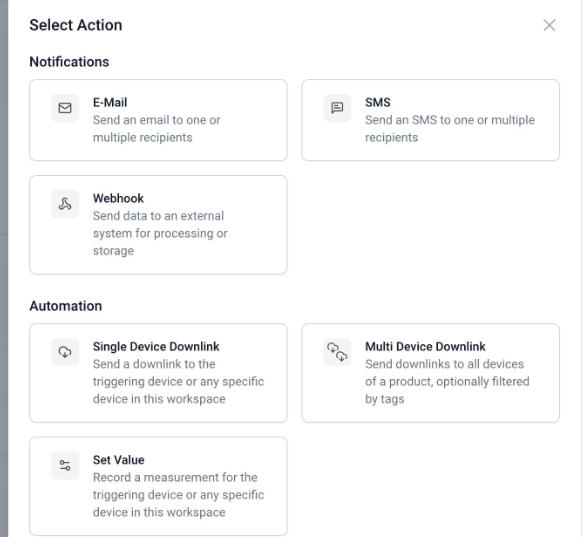
Under a white-label brand without Mobile Push, the Add Action picker only offers E-Mail, SMS, and Webhook — the Push Notification card is hidden.
White Label

A recipient isn't getting notifications

The most likely cause is that the member is currently unreachable — they have not installed the Datacake mobile app, are not signed in, or have no active registered device for the rule's brand. In the recipient picker they appear greyed out with an amber warning icon. Ask them to install the app and sign in; they will then start receiving the notifications.

Saving is blocked

  • Title or Message over 255 characters — the character counter turns red and saving is blocked. Shorten the text.

  • No recipients selected — at least one recipient is required to save the action.

Last updated

Was this helpful?